
How Many Users Can My Website Handle? A Practical Way to Calculate and Test It
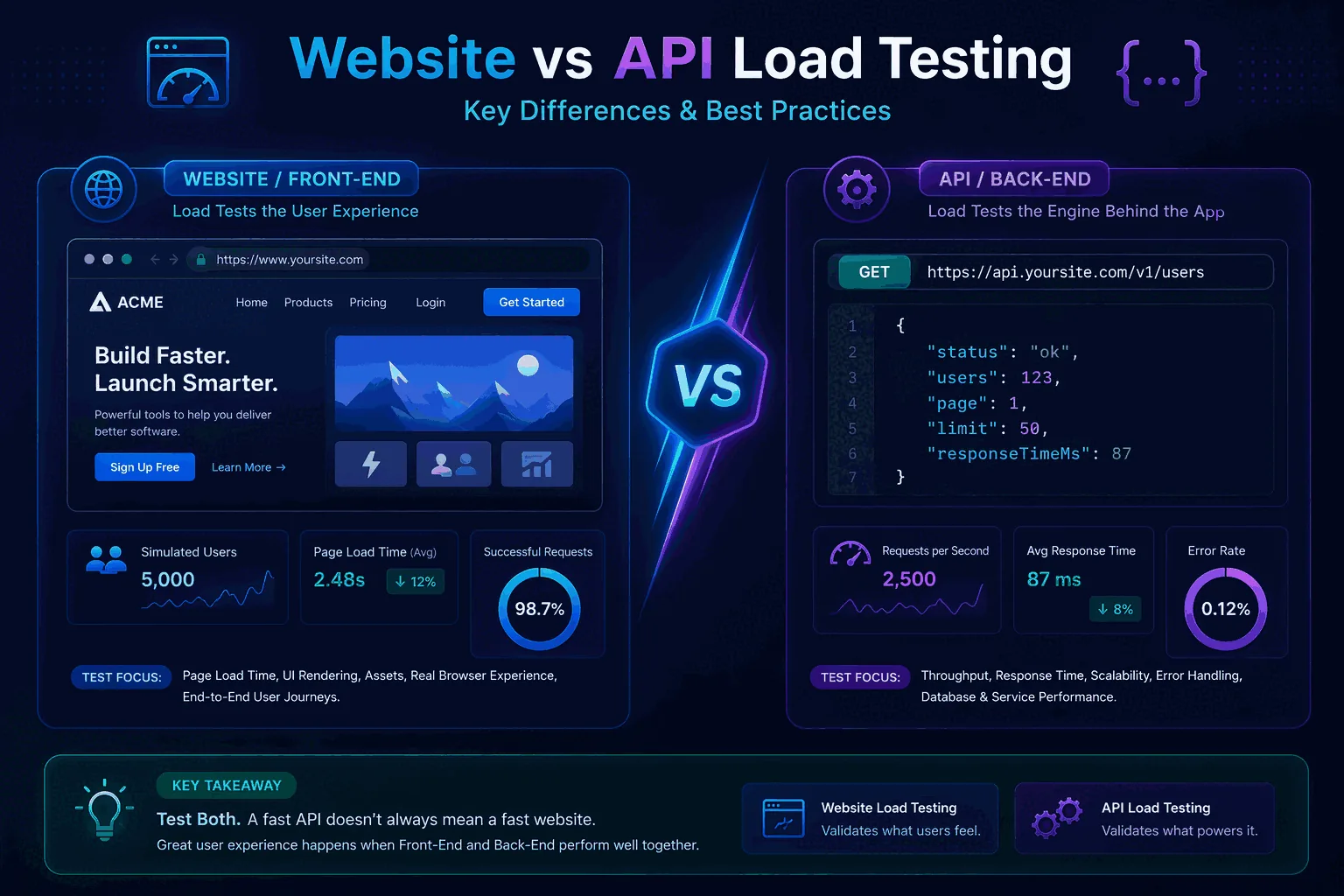
Most websites do not have a fixed user limit. Your site might handle thousands of people reading cached pages, but struggle with a few hundred users who are logging in, searching, uploading files, or checking out at the same time.
The practical answer is: estimate your expected concurrent users, translate that into requests per second, run a controlled load test, and stop when latency, errors, or infrastructure limits cross your threshold. Hosting specs can give a rough idea, but they cannot tell you how your actual application behaves under real traffic.
Short answer
Your website capacity is the highest realistic traffic level you can support while latency and errors stay within acceptable limits.
Best starting metric
Start with concurrent users and requests per second, not total monthly visitors.
Best proof
Run a gradual load test against the pages or API endpoints that matter most to your business.
The short answer
A website can handle as many users as its slowest critical component can support before the user experience becomes unacceptable. That component may be the web server, application code, database, cache, queue, CDN, WAF, third-party API, payment provider, or even the load generator used for the test.
That is why two websites on similar hosting can have completely different capacity. A static marketing site behind a CDN can handle far more visitors than a dynamic checkout flow that writes to a database and calls payment, tax, inventory, and email services on every request.
A useful capacity number must include the condition attached to it:
“The site handled 800 concurrent checkout users for 20 minutes with p95 page/API latency under 900 ms and an error rate below 0.5%.”
That is much better than saying “the site can handle 800 users,” because it explains the workload, duration, threshold, and result.
The SRE view: capacity is a range, not a single number
In production operations, capacity is never just “how many users.” It is a range that depends on the workload, the traffic shape, and the service level you are willing to accept. A system may comfortably serve 2,000 concurrent users browsing cached product pages, but struggle with 200 users submitting checkout forms, uploading files, or generating reports.
The practical SRE question is not “what is the maximum number before everything explodes?” The better question is: what traffic level can we serve while keeping latency, error rate, and recovery behavior inside an agreed boundary? That boundary matters because a website can look “up” while still being unusable. If pages return 200 responses after 12 seconds, the infrastructure may technically be alive, but the user experience has already failed.
For multi-million-visitor websites, this distinction becomes critical. Daily traffic totals are useful for business reporting, but incidents usually happen during peaks: a campaign goes live, a push notification lands, an influencer links to a page, a Black Friday sale starts, or a crawler hits expensive pages. The infrastructure does not feel monthly visitors. It feels concurrent active users, requests per second, database pressure, queue depth, and dependency latency in the exact moment the spike arrives.
A good capacity statement therefore includes four things:
- Workload: which pages, endpoints, and user journeys were tested.
- Load shape: how traffic ramps up, how long it holds, and whether it spikes suddenly.
- Pass criteria: p95 or p99 latency, error rate, timeout rate, and business-specific limits.
- Observed bottleneck: the first subsystem that degraded, such as database connections, application workers, cache misses, or a third-party API.
Without those details, “we can handle 1,000 users” is not an engineering answer. It is a guess with a number attached.
Why “users” is the wrong number to start with
When someone asks how many users a website can handle, they usually mean one of several different things:
- Total visitors per month, which is a business or analytics number.
- Visitors per day, which still hides traffic spikes.
- Users online right now, which is closer to capacity planning.
- Concurrent active users, which means users performing work at the same time.
- Requests per second, which is what the backend actually receives.
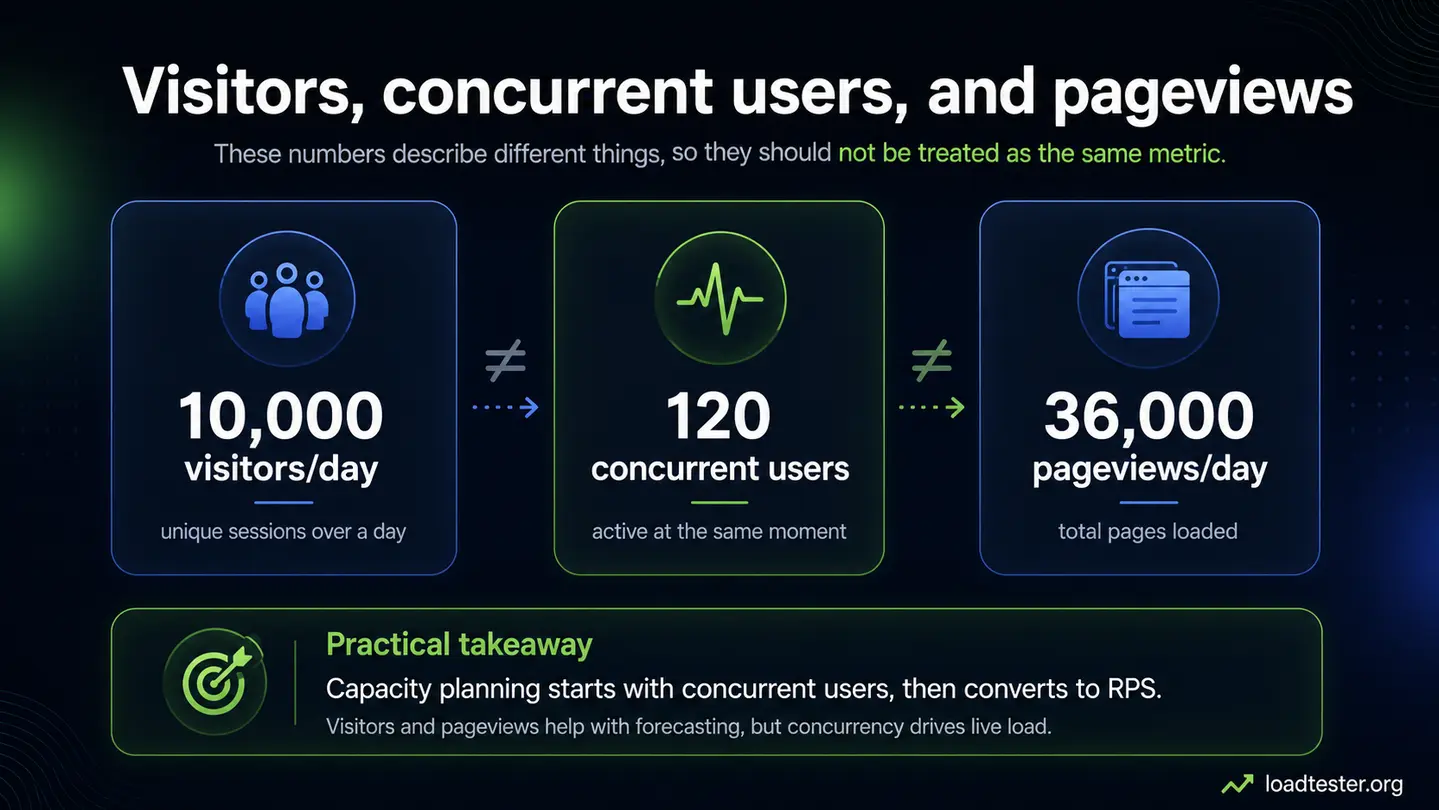
For load testing, concurrent active users and requests per second are usually more useful than total visitors. A website with 100,000 monthly visitors may be easy to serve if traffic is spread evenly. The same site may fail if 3,000 people arrive during a five-minute campaign, newsletter, product launch, or ad spike.
Visitors, concurrent users, and pageviews are different
Three numbers often get mixed together:
| Metric | What it means | Why it matters |
|---|---|---|
| Total visitors | How many people visit in a period | Useful for business reporting, weak for capacity by itself |
| Concurrent users | How many users are active at the same time | Useful for traffic modeling and load test design |
| Requests per second | How many HTTP requests hit the system each second | Useful for backend capacity, API testing, and infrastructure planning |
A single page view can create many HTTP requests: HTML, JavaScript, CSS, images, API calls, tracking requests, and background polling. Some of those requests are served by a CDN. Some hit your application. Some hit third parties. Capacity depends on the requests that reach the constrained part of your system.
For a deeper explanation of the difference between users and request rate, see the Load Testing FAQ.
Peak traffic matters more than average traffic
Average traffic is one of the easiest numbers to get wrong. A site with 3 million visits per month averages roughly 100,000 visits per day, but that does not mean traffic arrives evenly. Many real websites have quiet nights, busy weekdays, bursty campaigns, regional peaks, bot traffic, and short windows where a large percentage of the day’s traffic arrives in minutes.
Capacity planning should start with the busiest realistic window, not the monthly average. For a marketing site, that might be the first 10 minutes after a newsletter is sent. For an ecommerce store, it might be the first hour of a sale. For a SaaS product, it might be the start of the working day in your largest region. For a media site, it might be the moment a story trends on social platforms.
When you estimate capacity, write down the time window explicitly:
- Normal peak: the busiest traffic level you see on a regular day.
- Expected event peak: the launch, sale, campaign, or migration traffic you are preparing for.
- Failure discovery peak: the level where you intentionally continue until the first bottleneck is visible.
These are different tests. A normal peak test proves today’s production workload is safe. An event peak test proves you are ready for a known business moment. A failure discovery test teaches the engineering team where the system bends first. Mixing them together creates confusing results.
How to estimate concurrent users from your traffic
Use real analytics if you have it. The simplest estimate is:
concurrent users ≈ visits during a period × average visit duration ÷ period lengthExample:
- You expect 6,000 visits in one hour.
- The average active session lasts 3 minutes.
- One hour is 60 minutes.
6,000 × 3 ÷ 60 = 300 concurrent usersThat does not mean exactly 300 people are clicking every second. It means about 300 users may be active during the window. To turn that into a load test, you still need a traffic mix: what pages they visit, how often they click, whether they search, whether they log in, whether they add items to cart, and whether they submit forms or payments.
The traffic mix is the difference between a useful test and a fake number
The most common mistake in capacity testing is sending all traffic to one cheap URL. That can produce an impressive number, but it does not prove the website can handle real users. Real traffic is a mix of cached pages, dynamic pages, API calls, background requests, form submissions, redirects, assets, and sometimes third-party calls.
For an authoritative capacity test, split the workload into categories. A simple content website might test homepage, article page, search, and newsletter signup. A SaaS product might test login, dashboard load, list view, detail view, create/update actions, and report generation. An ecommerce site should separate product browsing from cart and checkout because checkout is usually more expensive and more fragile.
A practical model might look like this:
| Traffic type | Example | Why it matters |
|---|---|---|
| Cached read | Landing page, article, product page | Often served by CDN or full-page cache |
| Dynamic read | Search, account page, filtered list | Usually exercises application code and database reads |
| Write | Signup, checkout, booking, form submit | Often creates locks, transactions, queues, and external calls |
| Background/API | Autocomplete, polling, tracking, recommendations | Can multiply request rate without users noticing |
If 90% of your test hits cached pages and 10% hits checkout, the result means something very different from a test where 50% of users are checking out. This is why SRE teams care about workload definition before they care about the final user count.
How to convert users into requests per second
A rough model is:
RPS ≈ active users × requests per user journey ÷ journey duration in secondsSuppose 300 active users each complete a journey that creates 12 backend requests over 2 minutes:
300 × 12 ÷ 120 = 30 backend RPSThis is only an estimate. Real sites have bursts, caches, browser retries, background calls, abandoned sessions, slow users, fast users, and traffic from bots. But even a rough estimate is better than testing a random number of virtual users and hoping the result means something.
When you design the test, separate browser/static asset traffic from backend/API traffic. A CDN might serve images and JavaScript easily while your application struggles with checkout, login, search, or account pages.
Can my website handle 1,000 users at once?
Maybe. The phrase “1,000 users at once” is not specific enough to answer without a workload.
| Scenario | What 1,000 users might mean | Likely difficulty |
|---|---|---|
| Static landing page | Most traffic served by CDN cache | Often easy |
| Blog or documentation site | Mostly reads, few writes | Usually manageable with caching |
| Logged-in SaaS app | Dashboard, API calls, permissions, database reads | Depends heavily on backend design |
| Ecommerce sale | Product pages, search, carts, checkout, payment | Often hard |
| File upload workflow | Large payloads, storage, virus scanning, processing jobs | Can become hard quickly |
One thousand users reading a cached article may produce very little origin traffic. One thousand users checking out can create database writes, inventory locks, payment calls, email jobs, fraud checks, and queue pressure. Treat the number as a starting point, not the answer.
How many users can a small website handle?
A small website can sometimes handle a surprising amount of traffic if it is mostly static, cached, and served through a CDN. It can also fail under modest traffic if every page request runs expensive database queries, bypasses cache, or triggers slow third-party calls.
Instead of asking “small website,” classify the site by workload:
- Static site: usually constrained by CDN and hosting bandwidth.
- WordPress/content site: often constrained by PHP workers, database queries, plugin behavior, and cache hit rate.
- SaaS dashboard: often constrained by API latency, database queries, permission checks, and background jobs.
- Ecommerce store: often constrained by search, cart, checkout, payment, inventory, and order creation.
For small teams, the first capacity test does not need to be huge. Test the critical path at a realistic traffic level, then increase gradually until you see where latency or errors begin to rise.
How many visitors can a VPS handle?
A VPS does not have a universal visitor limit. CPU cores, memory, disk speed, network, web server settings, runtime, database location, cache configuration, and application code all matter. A small VPS can handle many cached reads, but struggle with dynamic requests that require database work on every page.
For a VPS-hosted application, watch these during a test:
- CPU saturation and steal time
- Memory and swap usage
- Database CPU, slow queries, and connection counts
- Web server workers or application worker pools
- Network throughput and connection errors
- p95 latency and error rate from the user side
If CPU is low but requests are slow, the bottleneck may be database locks, connection pools, external services, queue waits, or client-side/load-generator limits. Do not assume “add a bigger VPS” is the right fix until the test shows what is saturated.
How many users can a WordPress site handle?
A WordPress site’s capacity depends heavily on caching, plugins, theme behavior, database queries, PHP workers, admin-ajax usage, WooCommerce behavior, and hosting quality. A cached public page can be cheap. A dynamic WooCommerce cart or checkout step can be expensive.
For WordPress, test at least three paths separately:
- Cached public page: homepage, landing page, or article.
- Dynamic page: search, account page, cart, or personalized content.
- Write path: form submission, checkout, registration, or booking.
If the cached page performs well but checkout collapses, the site does not have a general traffic problem. It has a dynamic workflow capacity problem. That distinction matters because the fix may be query optimization, plugin removal, checkout simplification, worker tuning, or queueing — not just a CDN.
How many requests per second can my API handle?
An API’s RPS limit depends on endpoint cost. A cheap read endpoint may handle far more requests per second than a login, search, report generation, file upload, checkout, or write-heavy endpoint. Do not test one endpoint and assume every API route has the same capacity.
Group API endpoints by cost and risk:
- Cheap reads: cached lookups, simple detail pages, static configuration.
- Normal reads: database-backed list pages, dashboards, account data.
- Expensive reads: search, reports, aggregation, permissions-heavy queries.
- Writes: checkout, booking, signup, form submit, webhooks, imports.
Then test the endpoints that matter to the user journey. For a practical API workflow, use How to Load Test an API.
How to test how many users your website can handle
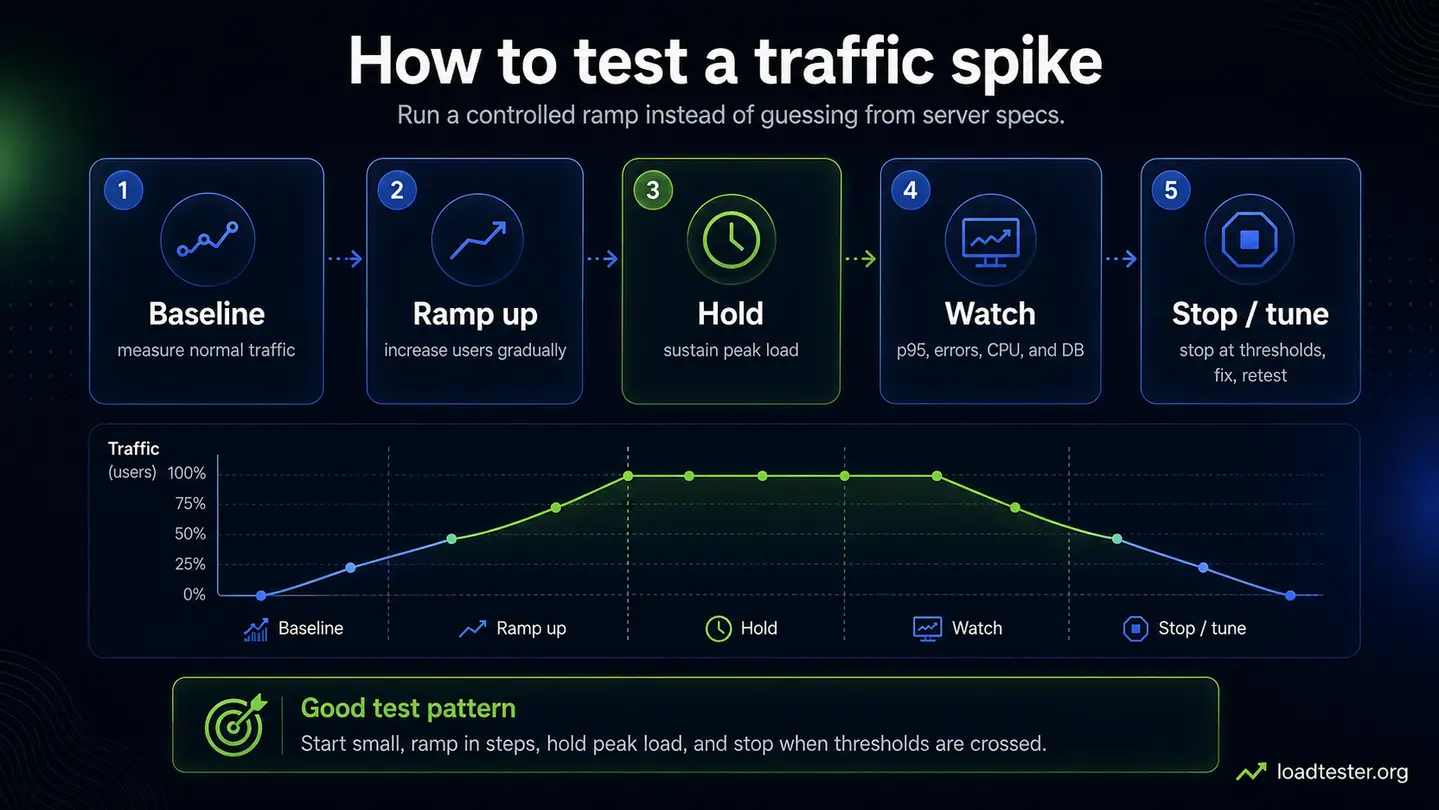
The safest way is to run a controlled load test with gradual ramp-up and clear stop conditions.
- Pick the goal. Example: “Can the site handle our launch campaign?”
- Choose the critical flow. Example: landing page → product page → signup → dashboard.
- Estimate traffic. Use expected concurrent users and backend RPS.
- Set thresholds. Example: p95 latency below 1 second, error rate below 0.5%.
- Start small. Begin below expected traffic to validate the script.
- Ramp gradually. Increase traffic in steps so you can see where degradation begins.
- Watch backend metrics. Test-side latency tells you what users feel; server metrics explain why.
- Stop when needed. Stop if errors, latency, or infrastructure limits cross the agreed line.
- Fix and repeat. Capacity testing is only useful if you retest after changes.
For production systems, read the Production Load Testing Checklist before you run high-volume traffic.
What metrics show the website is near its limit?
Capacity problems rarely start as a clean crash. They usually appear as a pattern:
- p95 or p99 latency rises while average latency still looks acceptable
- throughput stops increasing even when virtual users increase
- error rate starts climbing
- database queries or connection waits increase
- queue depth grows faster than workers can drain it
- CPU, memory, network, or worker pools approach saturation
- timeouts appear in application logs
- CDN, WAF, API gateway, or rate-limit events increase
Watch percentile latency closely. Average response time can hide a painful tail. If 5% of users are waiting several seconds, the average may still look fine. See p95 vs p99 Latency for a deeper explanation.
How an SRE would read the result
When a load test finishes, do not look only at the final success or failure badge. Read the test like an incident timeline. The useful question is: what changed first? Did p95 latency rise before errors appeared? Did database connection waits grow before CPU reached 100%? Did throughput flatten even though virtual users kept increasing? Did a WAF or API gateway start returning 429 or 403 responses?
A good review compares test-side metrics with infrastructure metrics over the same time window. Test-side metrics tell you what users experienced: latency, timeouts, connection errors, HTTP status codes, and throughput. Infrastructure metrics explain why it happened: CPU, memory, database connections, slow queries, queue depth, cache hit rate, network throughput, container restarts, autoscaling activity, and third-party dependency behavior.
The order of symptoms matters. If database wait time rises first, adding more web workers can make the system worse because more workers will compete for the same database. If cache hit rate drops first, the fix may be cache policy and warmup, not bigger servers. If the load generator saturates first, the target system may have more capacity than the test proved. If p95 rises but average latency stays flat, the tail is telling you that some users are already having a bad experience.
For production readiness, write a short test report after each meaningful run:
- traffic model and peak level tested
- duration and ramp pattern
- pass/fail thresholds
- highest stable traffic level
- first bottleneck observed
- changes to make before the next run
This turns load testing from a one-off graph into an engineering feedback loop.
What usually breaks first?
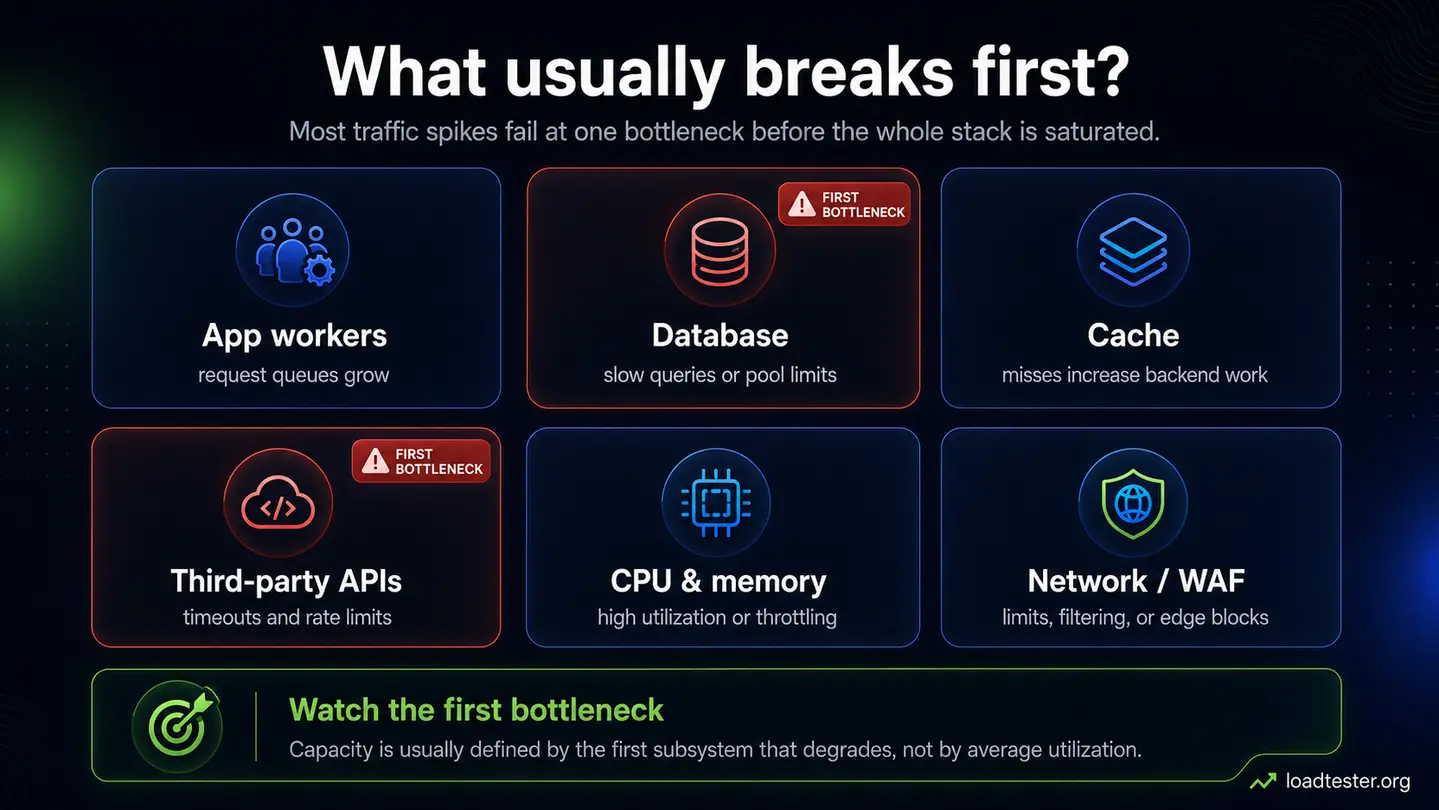
The first bottleneck depends on the system, but these are common:
| Bottleneck | What it looks like | What to check |
|---|---|---|
| Database connection pool | Latency rises, app waits for connections | Pool usage, wait time, slow queries |
| Slow database query | p95/p99 gets worse under load | Query plans, indexes, row counts |
| Cache miss or cache stampede | Origin traffic spikes, DB load jumps | Cache hit rate, TTLs, hot keys |
| Application workers | Requests queue before being processed | Worker count, CPU, runtime queueing |
| Third-party API | Timeouts or downstream 429/5xx errors | Dependency latency and error logs |
| Rate limits or WAF | 429, 403, blocked requests | Gateway, CDN, WAF, and rate-limit logs |
| Load generator | Target looks healthy but test cannot push more traffic | Generator CPU, network, open connections |
The fix depends on which bottleneck appears first. Scaling the application does not fix a database lock. Adding a CDN does not fix slow checkout writes. Increasing virtual users does not fix a saturated load generator.
How to increase how many users your website can handle
Capacity improvements usually fall into four groups:
1. Reduce work per request
Optimize database queries, remove unnecessary calls, reduce payloads, avoid repeated permission checks, and stop doing expensive work synchronously when it can be queued.
2. Serve more traffic from cache
Use CDN caching for static assets and public pages where safe. Improve cache hit rates for repeated reads. Avoid cache busting unless the test is intentionally measuring worst-case origin load.
3. Increase safe concurrency
Tune application workers, database connection pools, queue workers, and runtime limits carefully. More concurrency can help only if the downstream system can handle it. Otherwise it can make queues and latency worse.
4. Add capacity where the bottleneck actually is
Scale the web tier, database, cache, queue workers, or third-party plan only when the test shows that component is the constraint. Blind scaling is expensive and sometimes makes the problem move rather than disappear.
How to prepare for a traffic spike
Traffic spikes are different from steady growth. A site may handle normal daily traffic but fail when a newsletter, ad campaign, influencer post, product launch, Black Friday promotion, or app notification sends many users at once.
Before the event:
- identify the landing page and critical conversion path
- warm caches if the content is cacheable
- make sure autoscaling limits and cooldowns are understood
- define stop or rollback conditions
- notify support, engineering, and business owners
- test payment, email, SMS, and other downstream services in safe mode where possible
- prepare a lightweight fallback page or queue if the spike can exceed capacity
For ecommerce events, see Ecommerce Load Testing.
Common mistakes when testing website capacity
- Testing only the homepage. The homepage may be cached while checkout or login is the real bottleneck.
- Using total visitors instead of concurrent users. Monthly traffic does not tell you peak pressure.
- Ignoring think time. A script with no pauses may generate unrealistic traffic.
- Ignoring writes. Read-only tests do not prove checkout, signup, booking, or upload capacity.
- Testing from a laptop and trusting high-volume results. The generator may be the bottleneck.
- Looking only at averages. p95 and p99 reveal problems averages hide.
- Testing production without guardrails. A capacity test can damage users or data if it is not scoped.
Pre-launch capacity checklist
Before a real launch or campaign, treat capacity testing like a production change. The larger the expected traffic spike, the more important this checklist becomes.
- Define the business event. Is this a newsletter, paid campaign, migration, sale, launch, or normal growth?
- Pick the critical path. Test the page or journey that matters most to revenue or user success.
- Confirm safe test data. Avoid damaging production records, sending real emails, charging cards, or creating irreversible side effects.
- Set stop conditions. Agree in advance when to stop: error rate, p95 latency, 5xx count, database pressure, queue depth, or downstream limits.
- Watch the right dashboards. Have application, database, cache, queue, CDN/WAF, and load-test metrics visible at the same time.
- Notify stakeholders. Support, engineering, product, and business owners should know when the test is running.
- Prepare rollback or mitigation. Have a plan for disabling expensive features, reducing traffic, enabling a waiting room, or switching to a lighter page.
- Retest after fixes. A fix is not proven until the same workload improves under the same or higher load.
This is the difference between “we ran a test” and “we know what our site can handle under the conditions we care about.”
Example: testing if a website can handle a launch
Suppose you expect a launch campaign to send 10,000 visitors in the first hour. Analytics from similar campaigns shows that active sessions last about 4 minutes.
10,000 visits × 4 minutes ÷ 60 minutes = about 667 concurrent usersYou decide to test three flows:
- Landing page only, to validate CDN and origin behavior.
- Landing page → signup, to validate the conversion path.
- Signup → dashboard API, to validate the first logged-in experience.
Your pass/fail criteria might be:
- p95 landing page backend latency under 500 ms
- p95 signup API latency under 1 second
- error rate below 0.5%
- no sustained database connection pool exhaustion
- no unexpected 429, 403, or 5xx spikes
Then you run a ramp: 100 users, 250 users, 500 users, 750 users, and 1,000 users. If the system stays healthy at 750 but fails at 1,000, the honest result is not “the site can handle 1,000 users.” It is closer to “the current safe capacity is around 750 concurrent users for this launch flow under these thresholds.”
Where LoadTester fits
LoadTester helps answer this question without turning capacity testing into a pile of one-off scripts. You can create repeatable HTTP and API tests, run them before launches or releases, compare results, and use thresholds to decide whether the system stayed inside the limits you care about.
That matters because the first test rarely gives the final answer. You test, find the bottleneck, fix it, and test again. The value is in having a repeatable workflow that your team can run every time capacity or release risk matters.
FAQ
How many users can my website handle?
There is no fixed number. Your website can handle the traffic level where realistic user journeys stay within acceptable latency and error thresholds. The only reliable way to know is to estimate your expected traffic, run a controlled load test, and watch where the first bottleneck appears.
Can my website handle 1,000 users at once?
It depends on what those users do. One thousand users reading cached pages is much easier than one thousand users searching, logging in, uploading files, or checking out. Test the real journey, not only the number.
How do I calculate concurrent users?
A simple estimate is visits during a period multiplied by average visit duration, divided by the period length. For example, 6,000 visits in an hour with a 3-minute average visit duration is about 300 concurrent users.
How many requests per second can my API handle?
Each endpoint has its own limit. A cached read endpoint may handle far more RPS than login, search, checkout, report generation, file upload, or write-heavy endpoints. Test the endpoints that matter to your user journey.
How do I test if my website can handle a traffic spike?
Model the spike as a short window of concurrent users and request rate. Start below expected traffic, ramp up gradually, monitor p95 latency and errors, and stop if the system crosses your safety thresholds.